

Building DotNet.FileWatcher: A Cross-Platform .NET CLI Tool for Developers
How I built and published a global .NET CLI tool that watches files, rebuilds, and restarts your application — while preserving colored console output and emojis that other tools strip away.
Yosri Mlik
Software Engineer
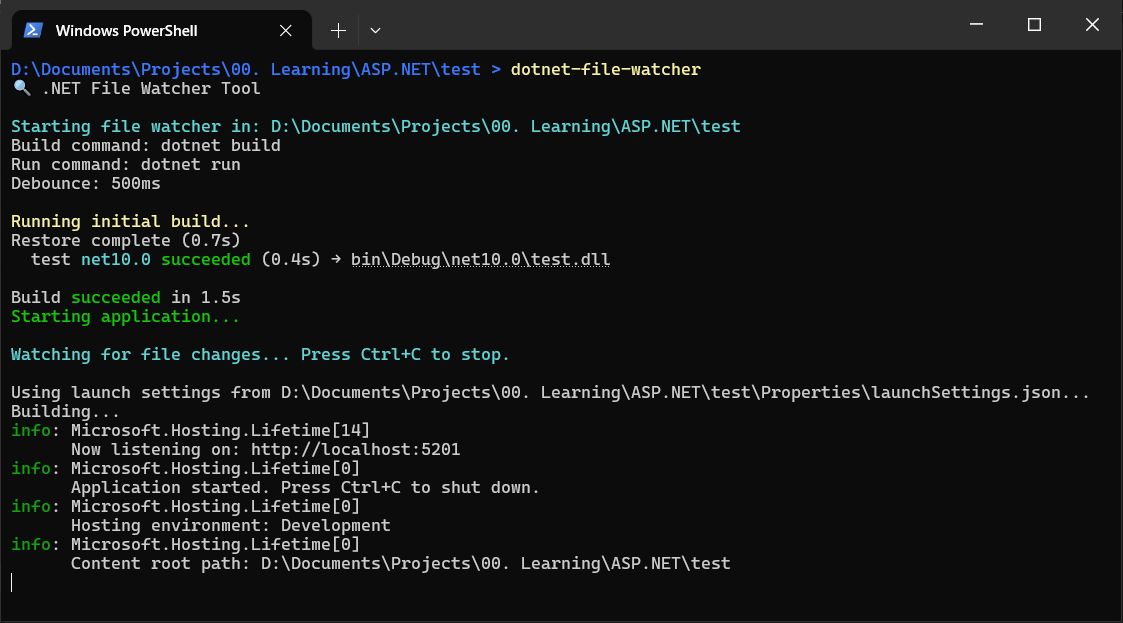
During everyday .NET development, I kept running into the same friction: every time I changed a file, I had to manually stop the running application, rebuild, and restart it. Existing watch tools either lacked flexibility, stripped away console colors and emojis by wrapping commands in a shell, or simply did not support custom build and run workflows. I wanted a tool that felt native to the .NET ecosystem, was configurable per project, and preserved the rich terminal output developers expect.
That gap is what inspired DotNet.FileWatcher — a cross-platform .NET CLI tool that monitors files for changes and automatically rebuilds and restarts your application.
What It Does
DotNet.FileWatcher is a global .NET CLI tool that monitors files for changes and automatically rebuilds and restarts your application. It is designed to be language-agnostic within the .NET ecosystem and works equally well for ASP.NET Core APIs, Blazor apps, worker services, or console projects.
Key Features
- Configurable Build & Run Commands — Define exactly how your project builds and runs via a simple JSON configuration file.
- Smart File Filtering — Uses Microsoft.Extensions.FileSystemGlobbing to support powerful include/exclude glob patterns, so only meaningful changes trigger rebuilds.
- Debouncing — Configurable delay to avoid rapid-fire rebuilds when multiple files change at once.
- Auto Kill & Restart — Gracefully terminates the current process before rebuilding, ensuring clean restarts.
- Cross-Platform — Built on .NET 8, it runs natively on Windows, Linux, and macOS.
- Colorful Console Output — Direct process execution preserves colors, emojis, and formatting from the underlying build and runtime tools.
How It Works
When you run dotnet-file-watcher in a project directory, the tool looks for a filewatcher.json configuration file. If none exists, an init command generates a sensible default. The configuration specifies:
- BuildCommand — The command to compile your project (e.g.,
dotnet build). - RunCommand — The command to start your application (e.g.,
dotnet run). - IncludedFiles & ExcludedFiles — Glob patterns that control which file changes matter.
- DebounceMilliseconds — A cooldown period to batch rapid changes.
- KillOnChange — Whether to terminate the running process before rebuilding.
The tool then sets up a FileSystemWatcher on the working directory. When a matching file changes, a debounce timer waits for the configured delay, kills the running process if enabled, executes the build command, and starts the application again. The entire flow is asynchronous and cancellable via Ctrl+C.
Architecture & Design Decisions
The codebase is intentionally small and focused, organized around four main concerns:
src/
├── Program.cs                # Entry point, config loading, init command
├── FileWatcherService.cs     # Core orchestrator: watcher, debounce, restart
├── FileMatcherService.cs     # Glob pattern matching wrapper
└── ProcessManager.cs         # Direct process execution (no shell wrappers)
Why No Shell Wrapper?
Shell wrappers often swallow or alter ANSI escape codes, which means developers lose colored build output and emoji icons in their terminal. By parsing the command into a filename and arguments and launching the process directly via ProcessStartInfo, the tool passes through the child process's stdout and stderr unchanged.
Tech Stack
- Language: C# 12
- Framework: .NET 8.0 (with forward compatibility to newer versions)
- Key Library: Microsoft.Extensions.FileSystemGlobbing (for robust glob pattern matching)
- Packaging: NuGet global tool (
dotnet tool install -g) - Versioning: SemVer via .csproj metadata
Publishing to NuGet
The project is packaged as a .NET global tool under the package ID YosriMlik.FileWatcher. Publishing follows the standard dotnet pack and dotnet nuget push workflow. Each release is versioned in the .csproj file, built in Release configuration, and pushed directly to NuGet.org, making installation as simple as:
dotnet tool install --global YosriMlik.FileWatcherWhat I Learned
- Direct process execution versus shell indirection — I learned firsthand how shells can interfere with stdout/stderr formatting and why direct execution matters for developer-facing tools.
- Debouncing in practice — Implementing a thread-safe debounce timer with CancellationToken support gave me deeper experience with async lifecycle management in C#.
- Glob pattern matching — Leveraging Microsoft.Extensions.FileSystemGlobbing instead of writing custom pattern logic kept the codebase smaller and more reliable.
- NuGet global tool distribution — Packaging a console app as a dotnet tool and managing versioning through .csproj streamlined distribution significantly.
Future Directions
- Watch multiple projects simultaneously from a single configuration.
- Plugin or hook system for pre/post build actions.
- Hot-reload support for scenarios where a full restart is not needed.
Conclusion
Building DotNet.FileWatcher taught me that the best developer tools solve a problem you personally experience every day. By focusing on direct process execution, smart file filtering, and clean distribution via NuGet, I created a tool that makes .NET development just a little bit smoother — and keeps those console colors intact.
Resources:
- GitHub Repository: https://github.com/YosriMlik/dotnet-file-watcher
- NuGet Package: https://www.nuget.org/packages/YosriMlik.FileWatcher